VectorMotion - Design/Animate
ReMotion AppsArt & Design
3.2108.00 Reviews
- Version
- 1.2.7
- Installs
- 100.00K
- Age Rating
- Everyone
Screenshots
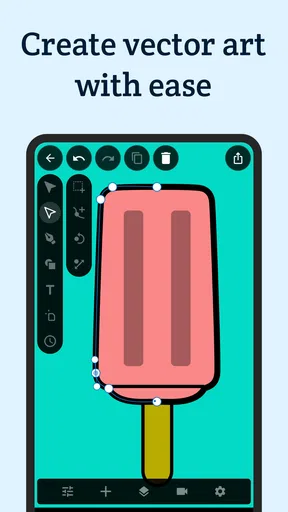
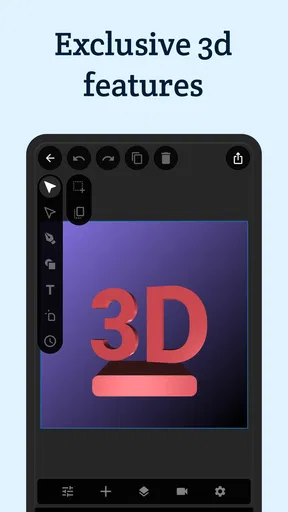
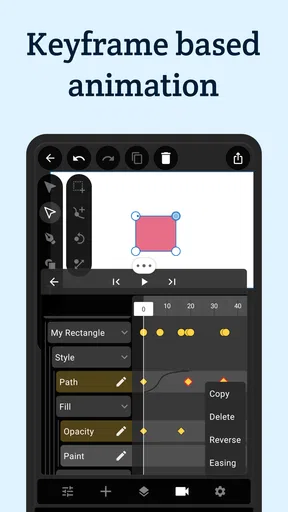
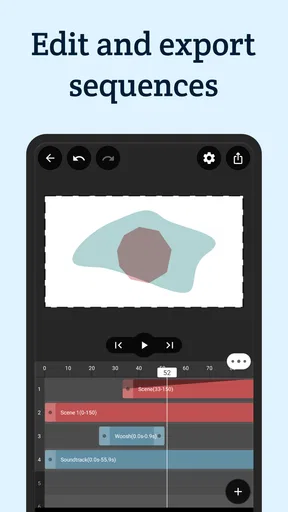
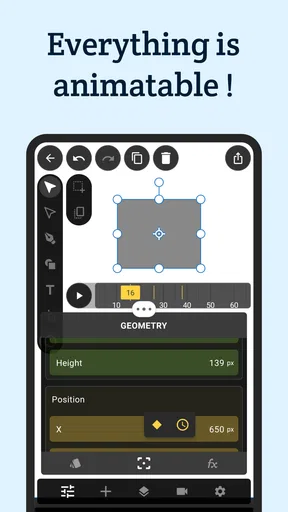
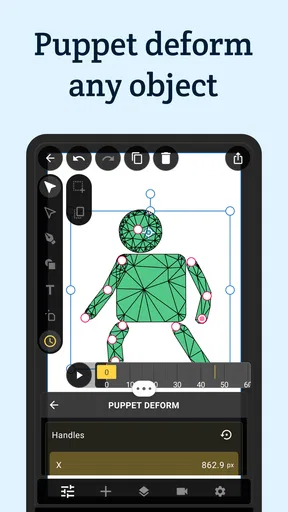
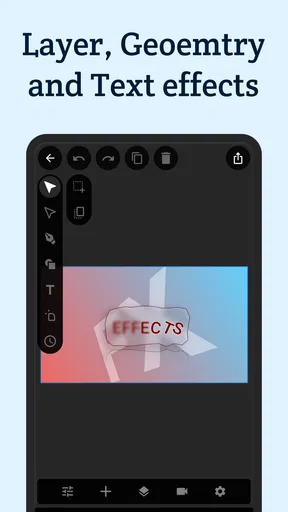
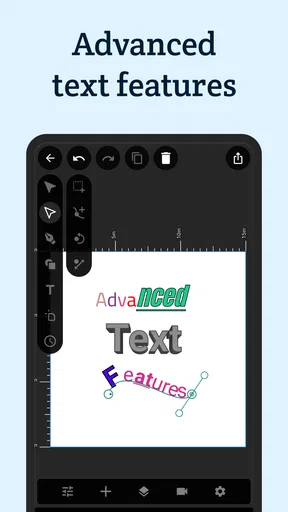
Our Review of VectorMotion - Design/Animate
 Analysis by Appyee
VectorMotion - Design/Animate is the kind of creative app I would suggest to someone who wants to experiment with vector artwork and simple animation without immediately committing to a desktop design suite. It comes from ReMotion Apps, sits in the Art & Design category, and is free to use. I found its appeal less in replacing every professional tool and more in putting a compact design-and-motion workspace on an Android device.
The first thing to understand is the app’s ambition. It presents itself as a single place for design and animation work, but that does not mean every task feels equally comfortable on a phone or tablet. Vector drawing, arranging shapes, and trying short animated ideas make sense on a touch screen. Detailed illustration, complex typography, or a large multi-layer project can become much more demanding. Its real strength is turning a quick visual idea into something you can refine and animate without leaving the same workspace.
I also think expectations matter because the average rating is 3.2 from around 1.3 thousand ratings, while the app has passed 100 thousand installs. That combination suggests a useful but not universally smooth experience. In my view, it is worth trying if you are curious about mobile vector animation, but I would approach it as a flexible creative tool rather than a polished replacement for every established desktop alternative.
Getting from installation to a first useful design
I approach installation with one practical question: can I make a small graphic that looks intentional before I get lost in the controls? Starting with a simple badge or icon gives me a quick way to judge the drawing space, object selection, and motion workflow without committing to a large project. That first test also sets up a clearer look at where the app’s combined design-and-animation approach is most useful.
What the first launch feels like
VectorMotion - Design/Animate is available at no cost and is rated for Everyone, which makes it approachable for students, casual creators, and people testing a new visual hobby. It requires Android 6.0 or later, so it can work on a broad range of devices, although the quality of the experience will still depend heavily on screen size, touch responsiveness, and how comfortably your device handles creative work.
On a phone, I would begin with a very small goal instead of trying to build a complete animated scene. A logo-like mark, a simple icon, or a moving geometric card is a better first project than a detailed character. This gives you room to learn how the drawing area behaves, how selected objects respond to touch, and how the animation workflow is organized.
Before starting, I recommend rotating the device if the workspace feels cramped. A wider layout can make object placement easier, especially when you need to see both the artwork and the controls. I would also keep the first canvas visually simple. Using only a few shapes makes it easier to tell whether a problem comes from your design or from a control you have not yet learned.
A practical first project
My preferred beginner exercise would be a small animated badge: create a background shape, place a contrasting symbol above it, and make one element move or change position. This is more useful than randomly tapping through tools because it teaches the basic relationship between a vector object and an animation change.
Start by creating the background and then add the foreground element separately. Keeping those parts distinct is important. If everything is treated as one object too early, adjusting the motion later becomes harder to understand. Select the foreground shape, position it at the beginning of the action, and then create a second state where it has moved. The exact control names may take a moment to recognize, but the underlying idea is straightforward: define what the object looks like at one point, then define how it should look later.
Once the movement works, preview it before adding decoration. This is one of the most useful habits in a mobile editor. A design can look attractive while still producing awkward motion, and a preview reveals that immediately. If the object jumps, disappears, or moves in an unexpected direction, simplify the scene and check which object is selected before changing anything else.
My first-success rule is simple: make one object move cleanly before attempting a complete animated composition. That small win teaches more than filling the screen with shapes and then trying to repair a confusing timeline.
Why vector work changes the workflow
Vector artwork is especially useful for icons, symbols, flat illustrations, interface graphics, and social posts that need clean edges. Instead of treating the image as a fixed collection of pixels, you work with shapes that can be repositioned and adjusted. That makes a simple design easier to reuse in different layouts.
There is a trade-off, though. Vector tools reward deliberate construction. If you are used to painting with a brush, you may initially find the process less natural because the artwork is built from objects and geometry rather than loose strokes. I would choose this app for clean, graphic visuals, not for a textured painting workflow or detailed photo retouching.
Three habits that prevent early frustration
First, name or mentally track the role of each object as you build the scene. Even a tiny project becomes confusing when several similar shapes overlap. A background, a main symbol, and a small accent should remain conceptually separate so you know what you are selecting.
Second, test movement with exaggerated changes at the beginning. If an object moves only a tiny amount, it can be difficult to tell whether the animation is functioning. A larger temporary movement makes the result obvious. Afterward, reduce it to the subtle motion you actually want.
Third, save or preserve a stable version before experimenting with a major change. Mobile editing encourages quick trial and error, but a creative project can become difficult to reconstruct once objects or animation states are altered. Keeping a simple base design gives you something reliable to return to.
Understanding the app’s useful middle ground
For me, the app’s middle ground is the space between a basic sketching tool and a full desktop vector editor: enough room to build and animate a focused visual, without making every project feel like a production pipeline. I find it most valuable when I want to test movement while shaping the artwork, then decide whether the idea deserves a more precise tool. That distinction helps explain both its strongest use cases and its limits.
Where it fits beside familiar alternatives
Compared with a conventional drawing app, VectorMotion is more attractive when movement is part of the idea from the start. A standard sketching tool may feel faster for freehand marks, but it often requires moving the artwork into another application before animation. Here, the design and motion stages belong to the same creative process.
Compared with a full desktop vector editor, the mobile format is more immediate but less comfortable for precision-heavy work. A mouse, keyboard, and large monitor still make complicated alignment, dense artwork, and long editing sessions easier. I would use VectorMotion for planning a visual, creating a small animated asset, or making a quick concept while away from a computer. For a large identity system or a production file with many carefully managed elements, a desktop application is the safer choice.
It also occupies an interesting space beside presentation and social-content apps. Those apps often provide ready-made layouts and effects, which can be faster when the goal is a finished post. VectorMotion makes more sense when you want to construct the visual yourself and control the movement rather than simply apply a preset.
Common confusion for new users
The most likely early mistake is treating the canvas like a painting surface. In a vector workflow, selecting the correct object matters. When shapes overlap, tapping the visible area may not always feel as direct as expected, especially on a small screen. If an edit seems to affect the wrong part, I would stop and inspect the selection rather than repeatedly undoing changes.
Another point of confusion is the difference between changing an object and animating an object. Moving a shape while editing the design is not automatically the same as defining a change over time. For animation, you need to think in stages: what is visible at the beginning, what changes, and what the viewer should see afterward.
Previewing is also easy to postpone, but that creates unnecessary uncertainty. I recommend previewing after each meaningful motion change. This helps separate three issues that can otherwise blend together: the object may be positioned incorrectly, the animation change may be missing, or the timing may simply feel too fast or slow.
A realistic everyday use case
Imagine that I need a small animated announcement for a club, classroom project, or personal social account. I could build a colored background, add a simple emblem, and animate the emblem entering from one side. The design would not need dozens of elements; it would need clear contrast, readable spacing, and motion that supports the message.
This is where the app feels practical. I can sketch the idea directly on a phone, test whether the movement feels distracting, and revise the composition without first learning a complicated desktop pipeline. If the result needs extensive text layout, brand guidelines, or several coordinated scenes, I would move to a more specialized tool. For a short visual experiment or a lightweight animated graphic, the mobile workflow is more appealing.
Who should use it and who should skip it
I think VectorMotion is best for beginners who want to learn how vector objects behave, hobbyists exploring animation, students making simple visual assignments, and designers who need a quick idea board while traveling. It can also suit someone who prefers constructing a graphic from clean shapes rather than drawing every detail by hand.
I would be more cautious about recommending it to a professional illustrator who depends on a mature desktop workflow, a person looking for advanced photo editing, or anyone who wants instant templates with almost no manual setup. It is also not my first choice for long sessions on a small phone. The app may be free, but your time and screen space are still costs worth considering.
What to try after the first success
Once the first object moves correctly, make the project more deliberate rather than simply larger. Try a two-part sequence in which one shape enters and another responds. Keep the colors limited so you can judge the motion clearly. Then make a second version with slower movement and compare the feeling. This teaches an important design lesson: animation is not only about whether something moves, but also about whether the movement improves attention and clarity.
A useful next step is to create a reusable visual language. Choose a small group of shapes, repeat their proportions, and use consistent spacing. Even without a complicated project, this makes the result look more intentional. It also exposes whether the app suits the kind of work you want to make. If you enjoy arranging and animating these elements, you may have found a productive mobile tool. If you mainly want brushes, textures, or automatic layouts, another category of app will likely serve you better.
Pay attention to the difference between experimentation and final delivery. VectorMotion is valuable during the idea stage because it lets you test composition and movement together. Before using the result in an important project, I would inspect every frame or preview carefully, check small-screen readability, and make sure the final visual still communicates its purpose without relying on motion alone.
My recommendation after using the workflow
ReMotion Apps has made an interesting choice by bringing vector design and animation into one Android app. The current version is 1.2.7, and the experience is most convincing when I keep the project focused: a few clean objects, a clear visual goal, and modest animation. That approach reduces the friction of touch editing and lets the app’s central idea work in its favor.
I would not describe it as a universal replacement for desktop design software, nor would I choose it for every kind of illustration. Its controls can require patience, particularly when objects overlap or when the distinction between editing and animating is not immediately obvious. The average rating of 3.2 reflects that it may not feel equally comfortable to every user.
Still, the free entry point makes it easy to judge for yourself. If you want to create a simple animated icon, explore vector composition, or turn a rough visual idea into a moving draft, I think it is worth installing and approaching with a small first project. Start with one shape, make one clean change over time, preview often, and expand only after the basic result works. That path gives a first-time user the best chance of finding the app’s useful side without becoming overwhelmed by its limitations.
Verdict
Strengths of VectorMotion - Design/Animate
- Intuitive timeline makes keyframe animation easy for beginners.
- Supports smooth motion graphics for social posts and presentations.
- Clean interface keeps essential design tools easy to find.
- Projects can be refined with precise positioning and timing controls.
- Useful for creating animated text, icons, and simple illustrations.
Limitations of VectorMotion - Design/Animate
- Advanced animation features may require a learning period.
- Complex projects can become difficult to manage on a small screen.
- Export options may be limited compared with desktop animation software.
- Large projects can use considerable storage and device resources.
- Some tools or assets may be restricted behind in-app purchases.
Similar Picks in This Category
View All
Canva: AI Photo & Video Editor
Canva4.8

PENUP – Drawing-sharing SNS
Samsung Electronics Co., Ltd.4.5

Crafto
Kutumb App4.6

Sketchbook
Sketchbook4.1

ibis Paint X
ibis inc.4.5

Adobe Express: AI Photo, Video
Adobe4.6
Frequently Asked Questions
What is VectorMotion - Design/Animate used for?
VectorMotion - Design/Animate is a mobile graphics and animation app designed for creating vector-based artwork and motion projects. It can be useful for making animated illustrations, social media content, logos, presentations, and short visual clips. Its main appeal is combining drawing, design, and animation tools in one workspace, although beginners may need some time to understand the interface and workflow.
Is VectorMotion - Design/Animate suitable for beginners?
The app can be used by beginners, especially those who want to experiment with animated graphics without immediately relying on desktop software. However, users unfamiliar with vector layers, keyframes, timelines, or motion controls may find the first projects slightly challenging. Spending time exploring the menus and testing simple animations is recommended before attempting a detailed illustration or complex composition.
Can I create professional-quality animations with VectorMotion - Design/Animate?
VectorMotion - Design/Animate provides tools that can support polished and creative results, particularly for vector illustrations, motion graphics, icons, and short animated compositions. The final quality depends on your design skills, project complexity, and the device being used. It is convenient for mobile production, but advanced professionals may still prefer desktop applications for large projects, extensive asset management, or highly detailed animation work.
Does VectorMotion - Design/Animate work offline?
Many design and animation tasks can generally be prepared directly on the device, which makes the app convenient when you are away from a stable internet connection. Nevertheless, certain features may depend on online services, such as downloading assets, syncing projects, accessing external resources, or checking account information. It is best to open the app and verify the specific offline behavior before starting an important project while traveling.
Is VectorMotion - Design/Animate free to download?
The app may be available to install without an upfront download charge, but some tools, export options, assets, or advanced features can be restricted by in-app purchases, subscriptions, or other limitations. Before committing to a project, review the current store listing and purchase terms carefully. Also check whether exported content includes restrictions, watermarks, or format limitations under the free version.
